
AnyDesk
Remote desktop option for guided support when the client authorizes access during an active session.
Open AnyDesk
Client tools
Find official apps, useful details and basic security rules to prepare a support request without sharing credentials through insecure channels.
Remote assistance
Remote access is tied to a ticket and an authorized session. Willdor confirms which tool applies based on the device, system and condition of the case.
Remote desktop option for guided support when the client authorizes access during an active session.
Open AnyDesk
Quick remote assistance option for temporary sessions when directed by Willdor.
Open TeamViewer
Google remote support access for temporary support codes on compatible computers.
Open Chrome Remote DesktopCCTV monitoring
Camera apps depend on the brand and project configuration. Installing or deleting an app without confirmation can delay support, create account confusion or expose access in the wrong place.

Used for many Hikvision-based systems when the project and account setup allow it.
Open Hik-Connect
Used for many Dahua-based systems when the recorder and user account are configured for it.
Open DMSS
Axis, Uniview, Luminys, Zosi and other systems may require different apps or account flows.
Ask WilldorDecision guide
Review what details can be prepared before a support session. Final instructions are confirmed by ticket.
| Situation | Prepare | Do not do | Best next step |
|---|---|---|---|
| Computer support or recorder access | Ticket request, remote tool requested by Willdor, device available, user present | Share passwords or unattended access without confirmation | Open a support request and wait for instructions |
| Cameras not visible in mobile app | App name, recorder brand, screenshot and internet status | Delete devices or reset passwords before support review | Send screenshots and affected camera names |
| Internet provider or router changed | New router photos, Wi-Fi name, affected systems and outage time | Assume cameras, POS or signage will reconnect automatically | Request network review or remote triage |
| Field visit scheduled | Site contact, access instructions, affected equipment and photos | Grant access to anyone without confirming Willdor identity | Confirm the visit through official Willdor contact channels |
Before requesting help
These details classify the case as remote review, field visit or a request that needs more information.
Support template
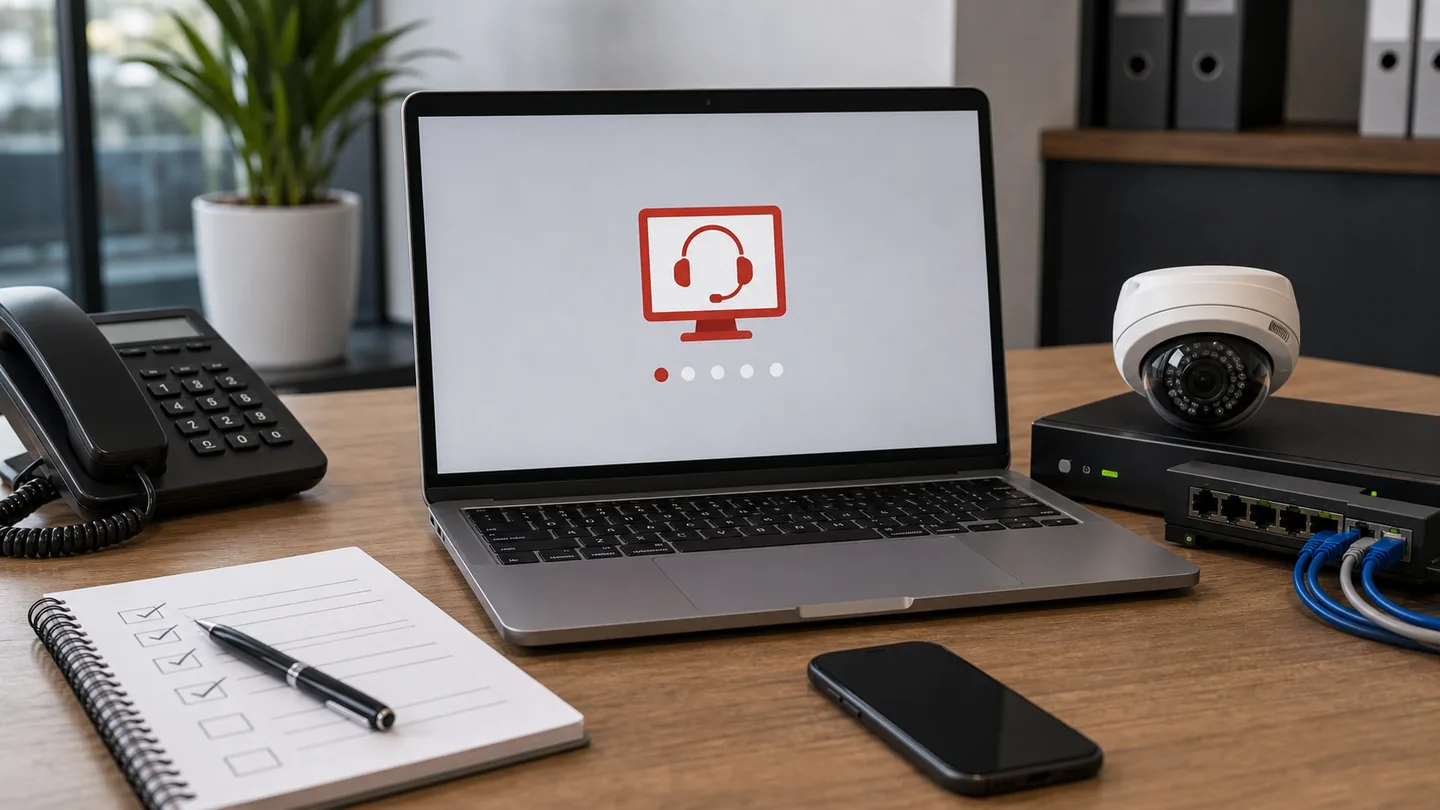
Include the initial system, site and authorized contact information to register the ticket and validate the support path.